BizPortals Counter
BizPortals Counter enables you to do the following:
- Counters enables you to show a list item count in a webpart display.
- Customize the web part interface via custom theme, header layouts, height etc.
- Specify multiple counters and user different layout from available options.
- Use different list views to show respective item counts.
Notes:
- Only users with site owners or higher privileges can add new BizPortals locations webpart.
- Users with site owners or higher privileges can choose to display header style/image by selecting the header layout in the webpart layout settings configuration.
2. Web part Configuration
2.1 Overview
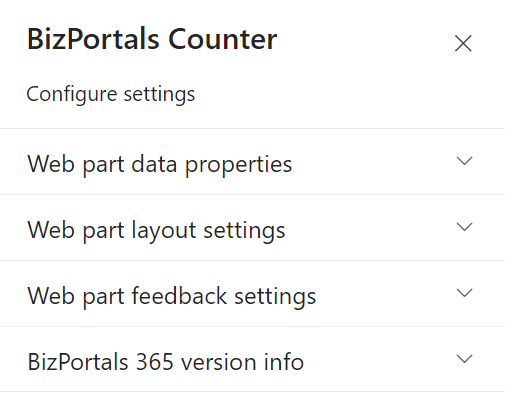
You can change the title, add a description of the web part, change the layout, set the web part height, apply custom theme, show/hide the web part title and other configurations.
Note – You must have at least the site owner’s permission to configure this web part.
Follow the steps mentioned below,
- Navigate to the top right corner of the page and click the edit button.

- Then click on the edit web part icon as shown in the below image.

- After clicking on the edit web part icon, the property panel will be shown for this web part on the right side.
2.2 Web Part Data Properties
2.2.1 Web Part Title
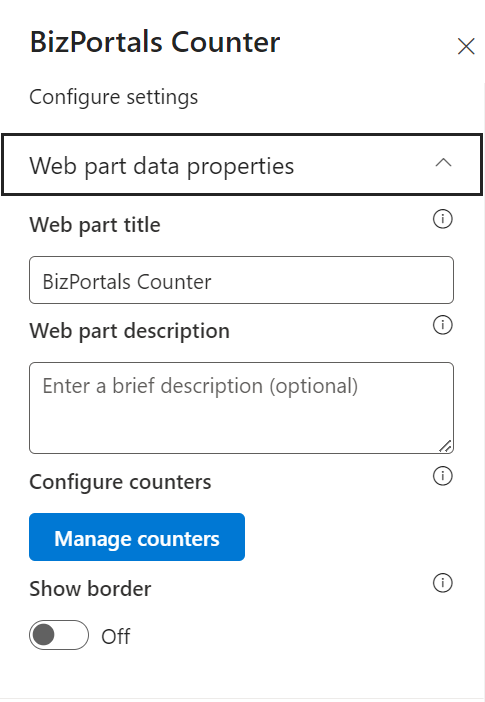
It is the name that shows in the header of the web part that summarizes the web part’s function.
2.2.2 Web Part Description
This is the brief information related to the web part which can highlight what is the functionality of the web part.
2.2.3 Configure counters
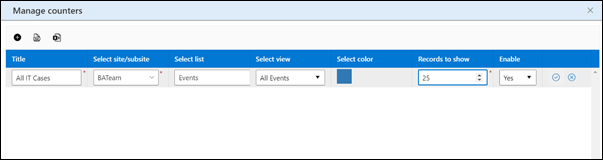
Click on Manage counters, and then add multiple counter items, as shown in the below screen. Click on “+” icon to add new counter items.


Title: The title entered here is showcased on the counter card visible to the user.
Select site/subsite: This dropdown populates all the sites available on the portal.
Select list: This dropdown shows all the lists available on the selected site.
Select view: Choose a view from dropdown.
Select colour: Select a colour to showcase in the counter card.
Records to show: Provide a number to display counter items (max 100) in the web part.
Enable: Select Yes/No to display the counter in the web part.
2.2.4 Show Border
To display a border around the web part, users should activate the toggle button in the property pane. Once enabled, a 1pt border will be applied to the web part.
2.3 Web Part Layout Settings
2.3.1 Select Header Layout
Users can change the web part header layout. There are several options to choose from. One option allows you to set an image in the web part title. When you select this option in the panel layout, a URL field will automatically appear next to the panel layout option. Users can enter an image URL to display on the panel. If you leave the field blank and click ‘Apply,’ it will use a default image.
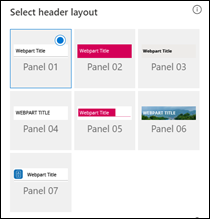
When you last panel layout user should be able to configure logo for web part header, the size for that image will be (175*38)

2.3.2 Select Web Part Layout
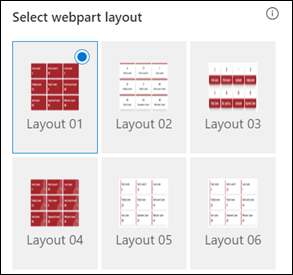
Users can select the web part layout by selecting from the available options.
2.3.3 Display Web Part Title
Enable this toggle button if you want to display the title in the header of the web part. Keep this toggle button in disabled state if you want to hide the title in the header of the web part.
2.3.4 Web Part Height (px)
Users can set the web part height by sliding the range bar according to the requirement.
2.3.5 Customize Theme
Users can enable this option to personalize the web part’s visual appearance by applying a custom background theme. This is achieved by entering a JSON (JavaScript Object Notation) code into the theme editor as shown in below image. The JSON configuration includes parameters such as text color, background color, and other styling options to tailor the look and feel of the web part according to individual preferences.

- Click” Learn more” to visit the Fluent UI Theme Designer website.
- Customize your theme by selecting your preferred primary, text, and background colors. Once satisfied, click Export theme.

- To apply the theme settings, copy the JSON code and paste it into the designated area of the Theme Editor (Customize theme field). Click Save.

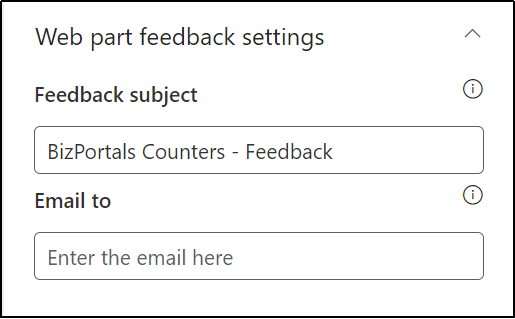
2.4 Web Part Feedback Settings
Feedback subject: This determines the subject line of the email sent when users submit any feedback related to the web part.
Email To: This field designates the recipient’s email address to whom feedback-related emails will be sent. When a user submits feedback through the web part, an email notification is generated and directed to the email address specified in this field.
Note: Feedback recipient must have access to this site collection.
2.5 BizPortals 365 Version Info
Here user can see the version information.

3. Web part Functionality
Add counter: To add a new counter, the user needs to go to “Configure Counters” in the property pane.
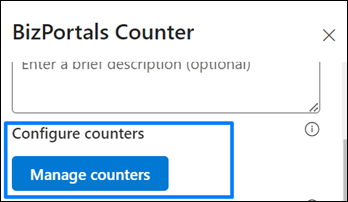

Multiple counters can be added from this window.
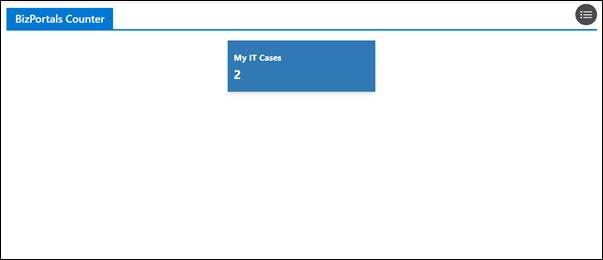
Edit Counter: Users can edit counters from the “Configure Counter” window, as shown in the image below.
View Counter items: Users can click on the count in the web part display to view the items created in the list. This feature is for viewing purposes only.
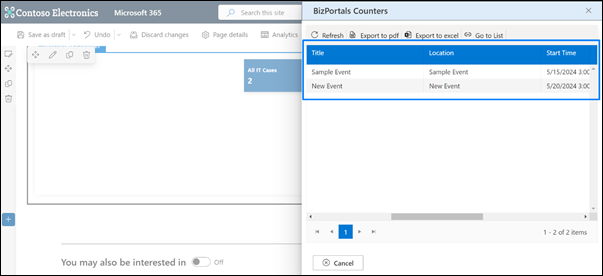
Export the counter Items
- On BizPortals counter web part, click on the count of the counter items.
- In the resulting window, Click the Export to PDF icon for exporting the list to a file in PDF format.
- Click the Export to Excel icon for exporting the list to a spreadsheet.
- A list in the desired format is downloaded.