How BizPortals DMS Works
1. BizPortals DMS Extension
BizPortals DMS extension enables you to do the following –
Enhances document management by offering robust functionalities such as multilevel approvals, automated file naming and distribution, and comprehensive version and activity tracking. It streamlines document processing through PDF merging and Word-to-PDF conversion, while ensuring security and compliance with digital signatures and detailed workflow histories, ultimately providing a complete solution for efficient document lifecycle management within SharePoint.
Core Document Management, Approval & Collaboration
Multilevel Approval:
- Automates and streamlines document review and approval processes, allowing for complex routing of documents through multiple stages and stakeholders. This ensures proper authorization and adherence to internal policies.
Periodic Review
- The Periodic Review feature allows users to automate and manage document review cycles effectively. Here’s a summary of its functionality:
- Periodic Review Conditions: Set specific criteria (e.g., document type, status) to determine which documents require periodic review.
- Next Review Date: Automatically calculates the next review date based on a selected base field (e.g., Created Date) and a defined interval (e.g., +1 year).
- Send Notification To: Choose recipients (e.g., document creator, workflow approvers) who should receive reminders for the upcoming review.
- Notification Frequency: Set how many days in advance of the next review date the notification should be sent (e.g., 7 days before).
- This tool ensures timely reviews, helps maintain compliance, and keeps document content current.
Activity Log:
- Detailed audit trail capturing all activities performed on each document, including field- level changes, user actions, and timestamps.
Workflow History:
Provides a detailed record of the progression of workflows, showing the status of each step, who completed it, and when. This allows for easy tracking and troubleshooting of automated processes.
Document Transformation & Handling
Merge PDF:
- Enables the combination of multiple PDF documents into a single file, simplifying document aggregation and distribution.
Convert Word to PDF:
- Facilitates the conversion of Word documents to PDF format, ensuring consistent formatting, security, and easy sharing across various platforms.
Zip Files:
- Allow users to compress multiple files into a single ZIP archive, reducing file size for easier storage and faster transmission.
Auto name Files:
- Automates the naming of documents based on predefined rules or metadata, ensuring consistency, reducing manual effort, and improving searchability.
Distribute files to different locations:
- Simplifies the process of sending or copying documents to various designated folders or libraries within SharePoint.
Extended PDF:
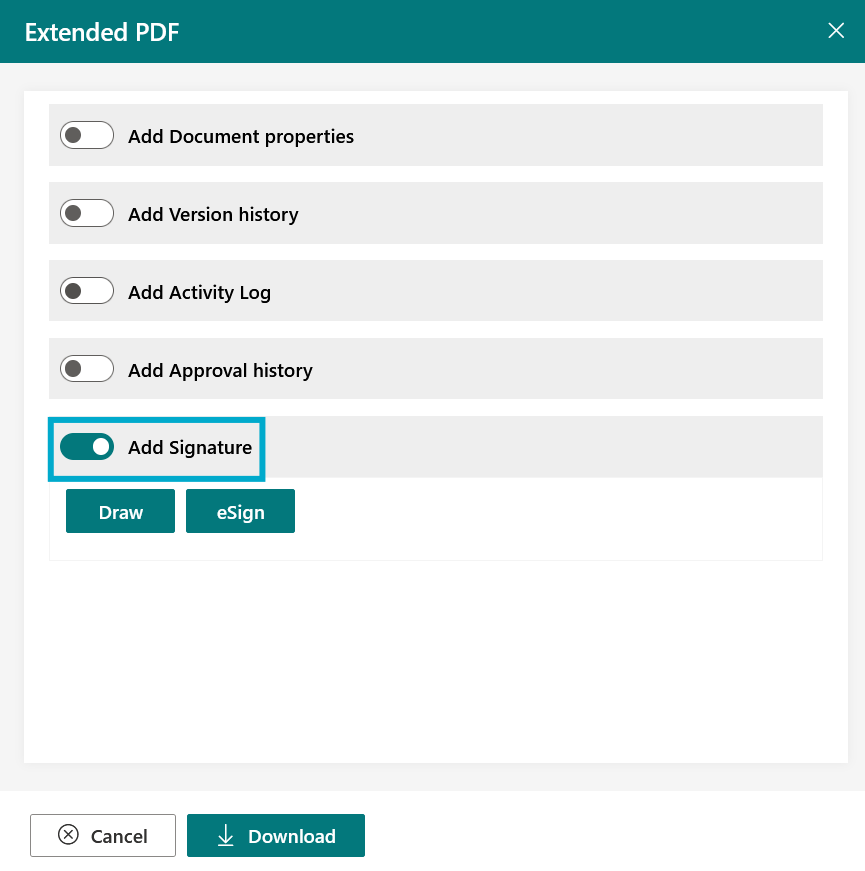
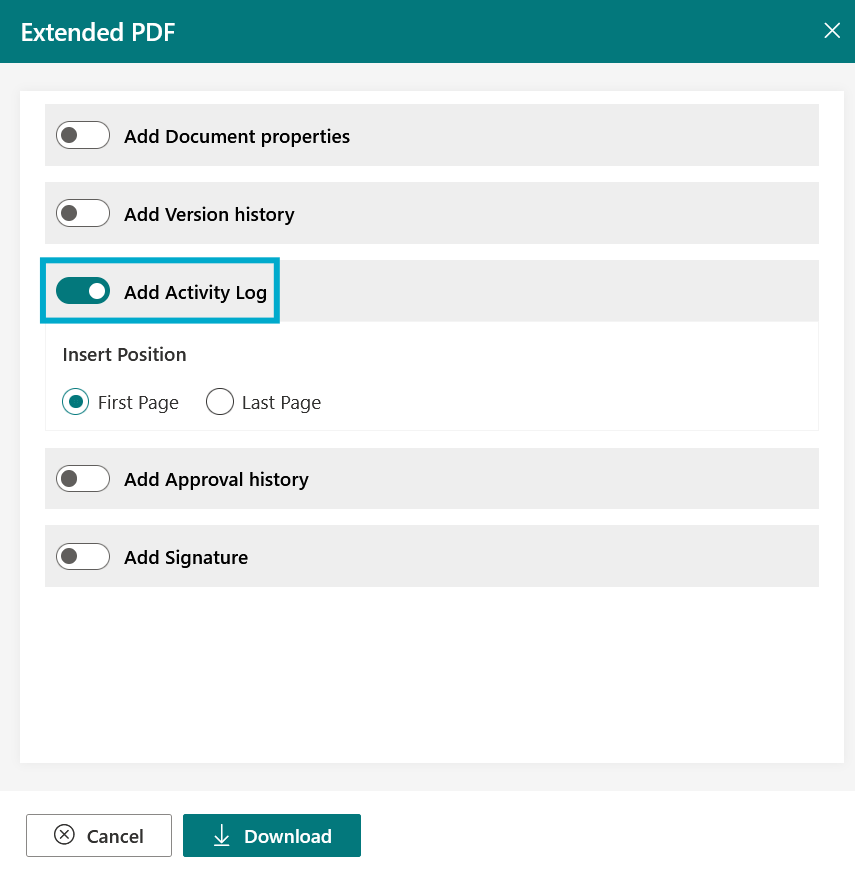
- Users can selectively include or exclude the following elements by toggling the switches:
- Document Property: Metadata such as title, author, creation date, etc.
- Version History: A log of all past versions of the document.
- Activity Log: Records of user interactions or changes made.
- Approval History: Details of the document’s approval workflow.
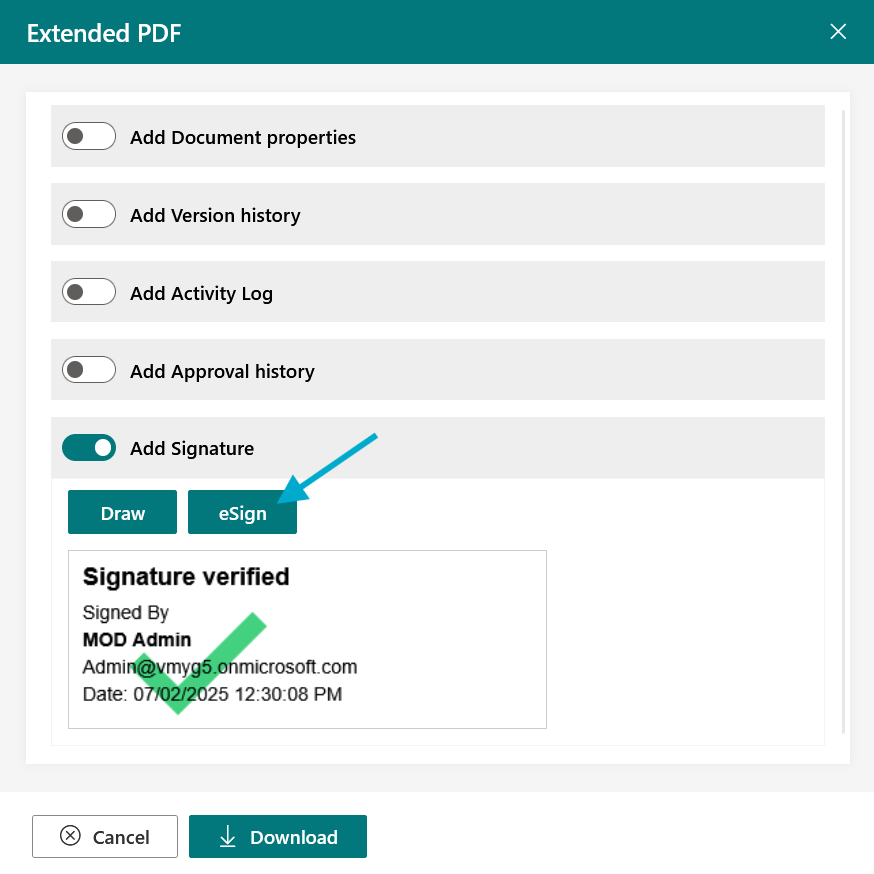
- Signature: Draw or electronic signature applied to the document.
2. BizPortals DMS Configuration
2.1 Installation and Configuration
The “BizPortals DMS Configuration” solution is essential for setting up and customizing your BizPortals DMS environment. Its installation is a crucial step to enable the powerful document management features of BizPortals. For detailed step-by-step instructions on how to install and configure this solution, please refer to the comprehensive guide available at BizPortals DMS Installation page.
2.2 Functionality
The “BizPortals DMS Configuration” solution provides the functional elements for a robust document management system, primarily leveraging Microsoft SharePoint and Microsoft 365. Its core functionality revolves around the configuration allows for the setup of automated workflows for document approvals and routing, enhancing efficiency and consistency. Furthermore, it supports advanced document sharing and collaboration, and audit trails for comprehensive tracking of document activities. By providing these configuration options, it empowers organizations to tailor their document management processes to meet specific business needs, ensuring compliance, improving productivity, and fostering seamless collaboration across teams.
2.2.1 Multilevel Approval
Multilevel approval configurations are essential for organizations requiring a structured and auditable process for various requests. They define a hierarchical workflow where an item must be reviewed and approved by multiple individuals or departments in a predetermined sequence before finalization. By allowing for sequential approvals, conditional routing based on specific criteria (e.g., amount, department, type of request), and the ability to define different approval matrices, multilevel configurations provide the flexibility needed to manage complex organizational hierarchies and diverse approval requirements effectively.
- To perform Multilevel approval configuration, go to your document library and find the “DMS Configurations” extension.

- Click “DMS Configurations” will open the DMS Configurations pane.

- Click “Enable Features” to open a new pane and choose from available features.
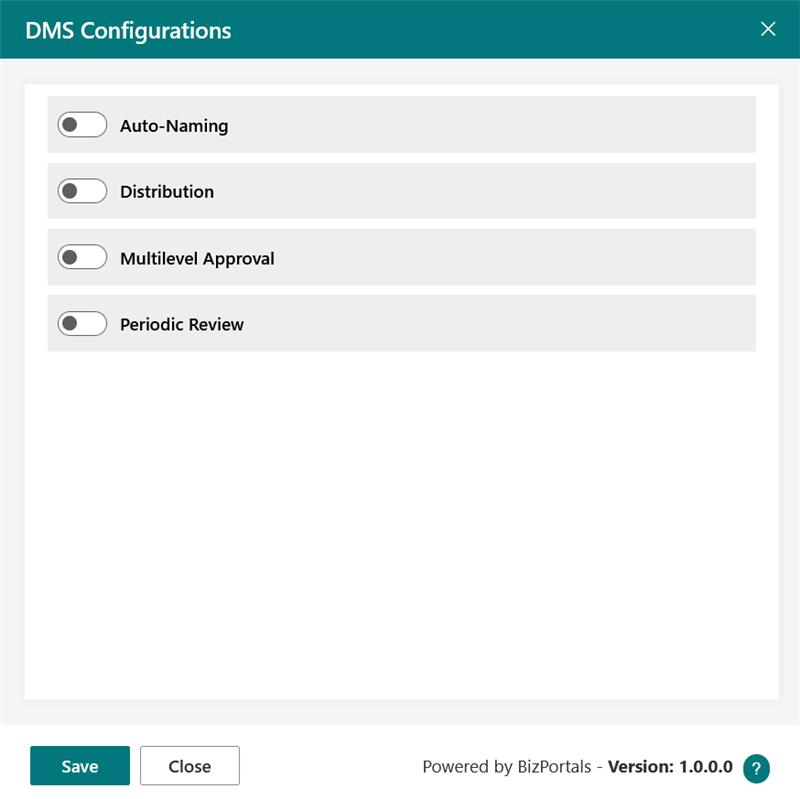
- To utilize the Multilevel Approval feature, enable it within the desired site(s) or subsite(s) and save.

- After saving these settings, you’ll see a ‘successful’ notification, followed by the appearance of additional options to define your Approval Rules.

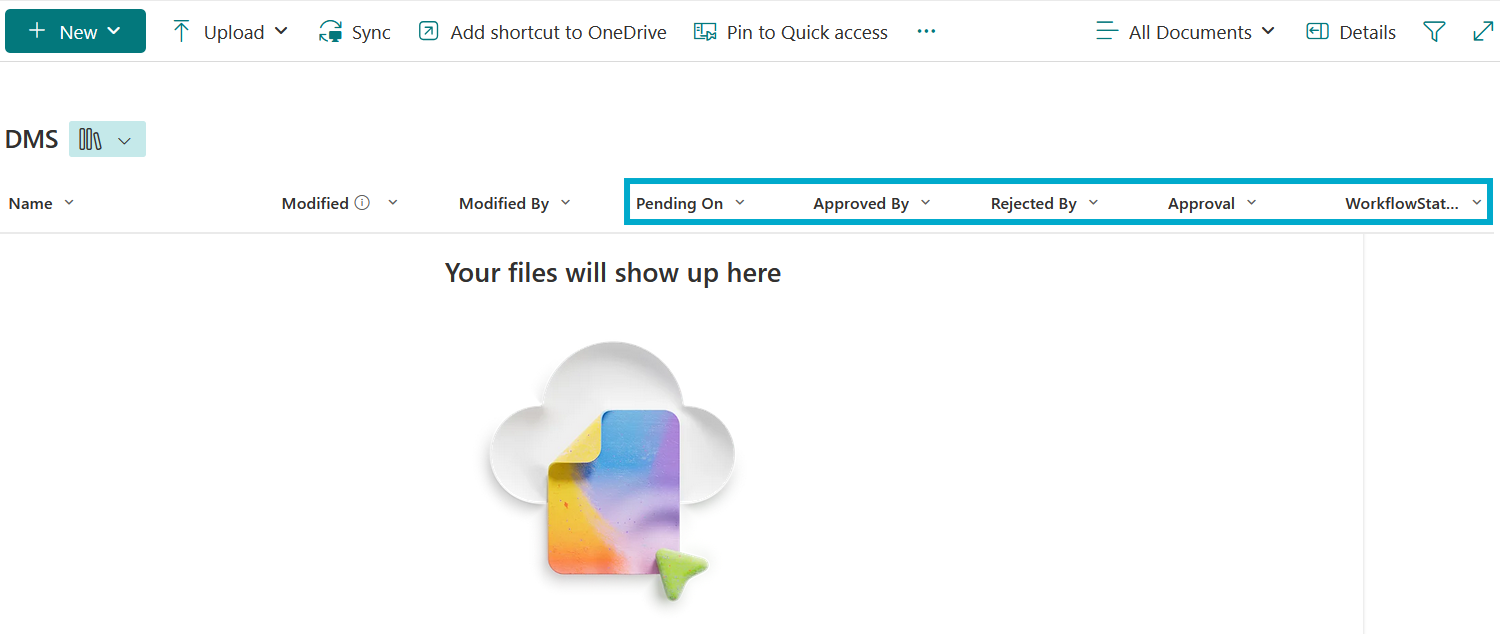
Note: Upon successful activation of this feature, ten new approval-related columns will appear in the library. These include Pending On, Approved By, Rejected By, Remaining Approvers, BizpDMSWFInstanceID, BizpDMSWFName, Approval, WorkflowStatus, ApprovalDate, and BizpDMSWFGroup. Of these, five will be visible by default in the ‘All Documents’ view.

Library View:
The system will generate five backend lists associated with this feature:
BizpDMSApprovalEmailTemplateList, BizpDMSApprovalList, BizpDMSHistoryList, BizpDMSReviewList, and BizpDMSTriggerList.
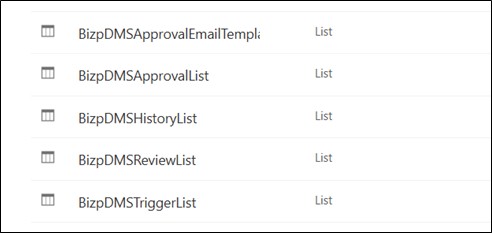
Note: The list created above is used to store workflow-related configurations and settings. To ensure the BizPortal DMS Extension functions correctly, it is recommended not to modify these lists from the backend.
- The Approval Rules option allows you to configure your flow by opening a dedicated setup pane.

- Click “Define” to initiate the setup of your new flow/rule. You’ll need to specify the Title, Trigger Method, Conditions & Approvers, as per the relevant criteria.

Understanding Flow Types
We offer two types of flows: Default and Power Automate.
- Default Flow: This uses a code-based approval system. You’ll need to specify approver names to use it in your approval process.
- Power Automate Flow: This type leverages SharePoint’s Power Automate. To use it, simply upload a Power Automate flow and update the library URL in the flow reference.
Note: For the Power Automate flow related information, please contact us at support@bizportals.com
2.2.2 Periodic Review
Periodic review in a Document Management System (DMS) library extension are settings that enable automated, scheduled assessments of stored documents to ensure compliance, relevance, and accuracy over time. These configurations define the frequency and criteria for reviewing documents, such as policies, procedures, or regulatory records, helping organizations maintain up-to-date and legally compliant documentation. By setting periodic review intervals—monthly, quarterly, or annual users can automate notifications to document owners or reviewers, prompting them to evaluate and update content as needed. This not only enhances information governance but also supports audit readiness and reduces the risk of outdated or obsolete information being used.
To perform Periodic Review configuration, go to your document library and find the “DMS Configurations” extension and Click “Enable Features” (as shown in above Multilevel Approval Feature Configurations)
- To utilize the Periodic Review feature, enable it as shown in the screenshot below.
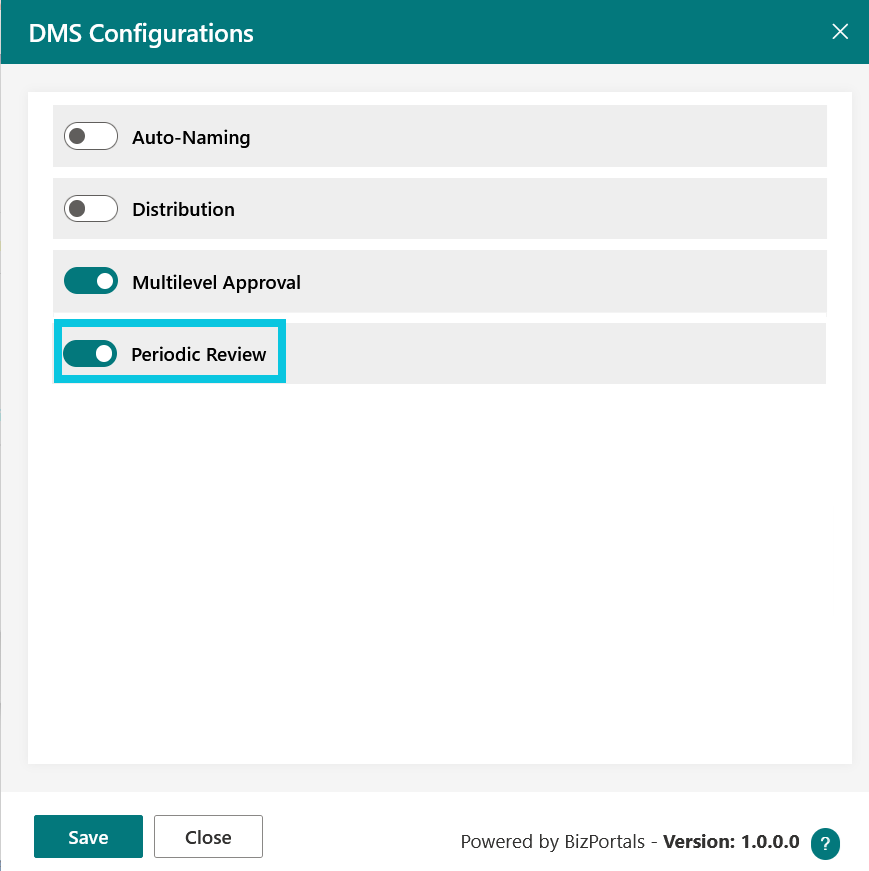
Note: Enabling this option automatically adds a “Next Review Date” column to your document library, visible in the “All Documents” view.
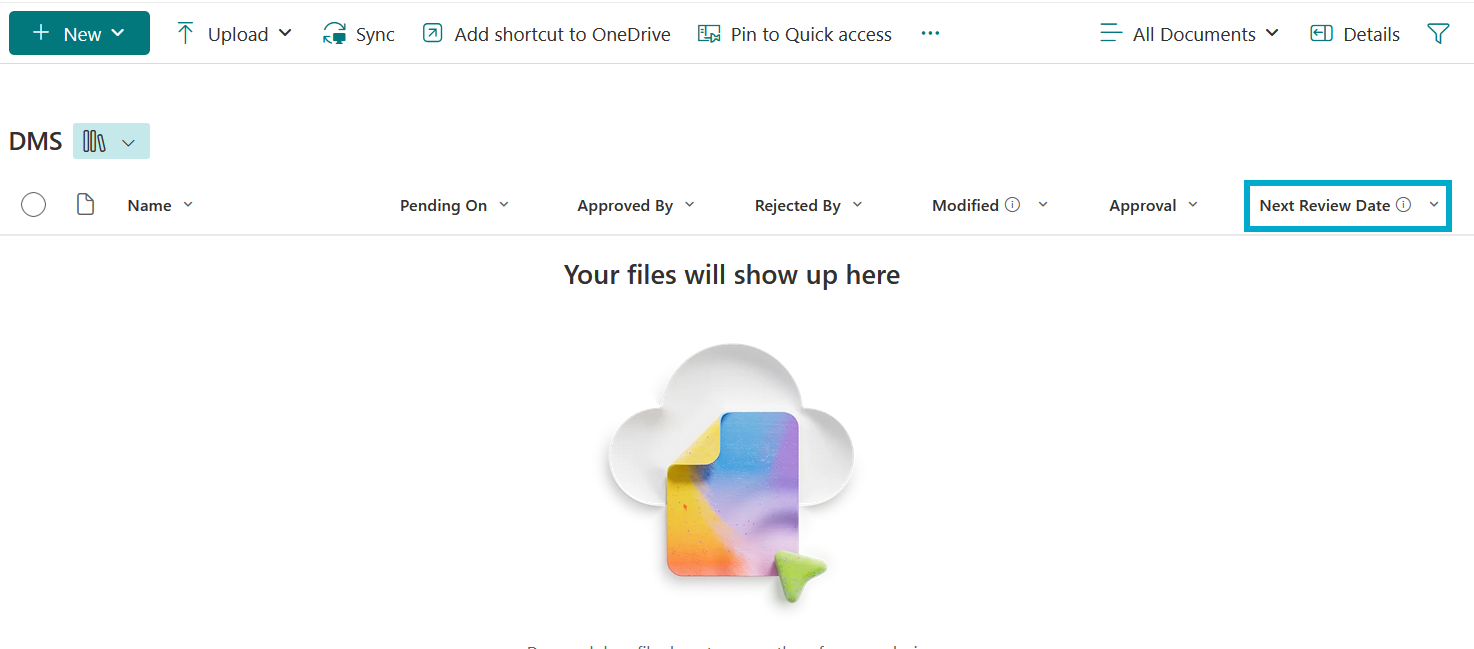
- After saving these settings, you’ll see a ‘successful’ notification, followed by the appearance of additional options for your Periodic Review Rules.

- To configure this feature, click on Periodic Review Rules.
- Click “Periodic Review Rules” to configure this feature. Here, you can define conditions for the review, set the next review date, specify email recipients for notifications, and determine the notification frequency before saving your changes.
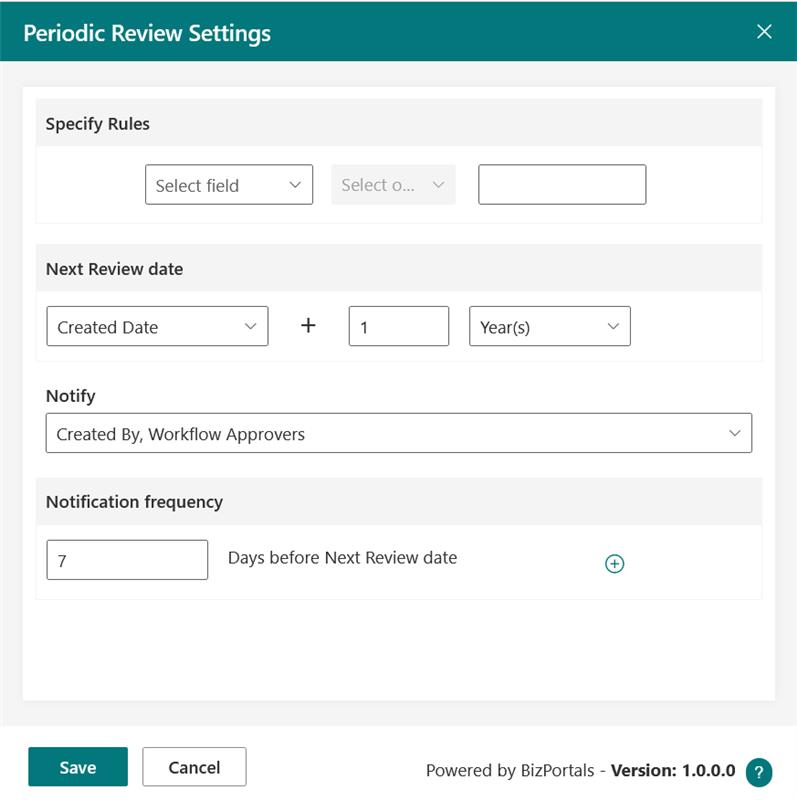
Note: This Periodic Review feature requires a Power Automate flow. For more information, please contact us at support@bizportals.com
2.2.3 Activity Log
The Activity Log feature in BizPortals Document Management System (DMS) extension provides a comprehensive and transparent audit trail of all changes made within the document.
It captures detailed information for every action, including the user who performed the change, the date and time of the modification, and the associated version number of the document. For each activity, the log clearly indicates which field was modified, along with the previous (old) value and the new value, allowing users and administrators to track document history with precision. This feature enhances accountability, supports version control, and ensures compliance by offering full visibility into the lifecycle of every document in the system.
- To use this feature, simply select the document and locate the feature Activity Log.

- Click on the Activity Log to view details.

The screenshot above shows that you can export to PDF or Excel when necessary.
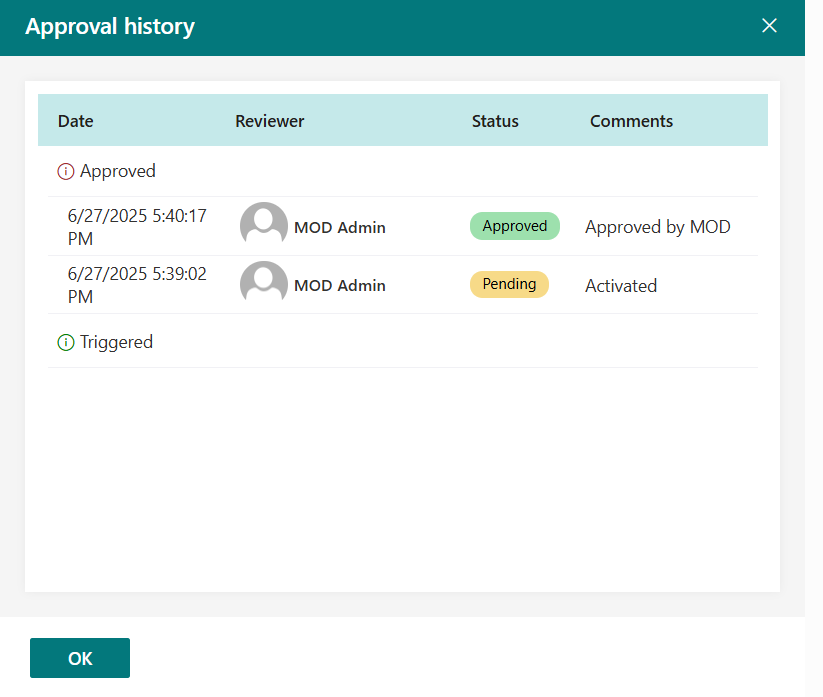
2.2.4 Approval History
The Approval History feature in BizPortals Document Management System (DMS) extension offers a detailed and chronological view of the entire approval process associated with a document. It records all key workflow events, including when the workflow was triggered, the dates of each action, and any comments provided by users during the approval stages. The log clearly shows who approved or rejected the request, along with any accompanying remarks, and indicates to whom the request is currently pending. This feature provides full visibility into the approval lifecycle, enabling better process tracking, accountability, and faster resolution of bottlenecks in document workflows.
Note: This feature requires that the multilevel approval feature is enabled.
- To use this feature, simply select the document and locate the feature Approval History.

- Click on the Approval History to view details.
2.2.5 Assemble PDF
The Assemble PDF feature in our DMS extension for SharePoint not only allows users to combine multiple PDF documents into a single pdf file but also offers advanced customization options to enhance usability. Users can reorder the PDFs before merging, ensuring the final document reflects the desired sequence. Additionally, the feature provides flexibility to overwrite existing files assign, provide a custom name to the merged file and select a target location for saving it, all within the merge PDF window. These capabilities make document consolidation more intuitive and tailored to individual workflow needs, streamlining both organization and distribution directly within the SharePoint environment.
- To use this feature, simply select 2 or more pdf and locate the feature Assemble PDF. Refer below screenshot.
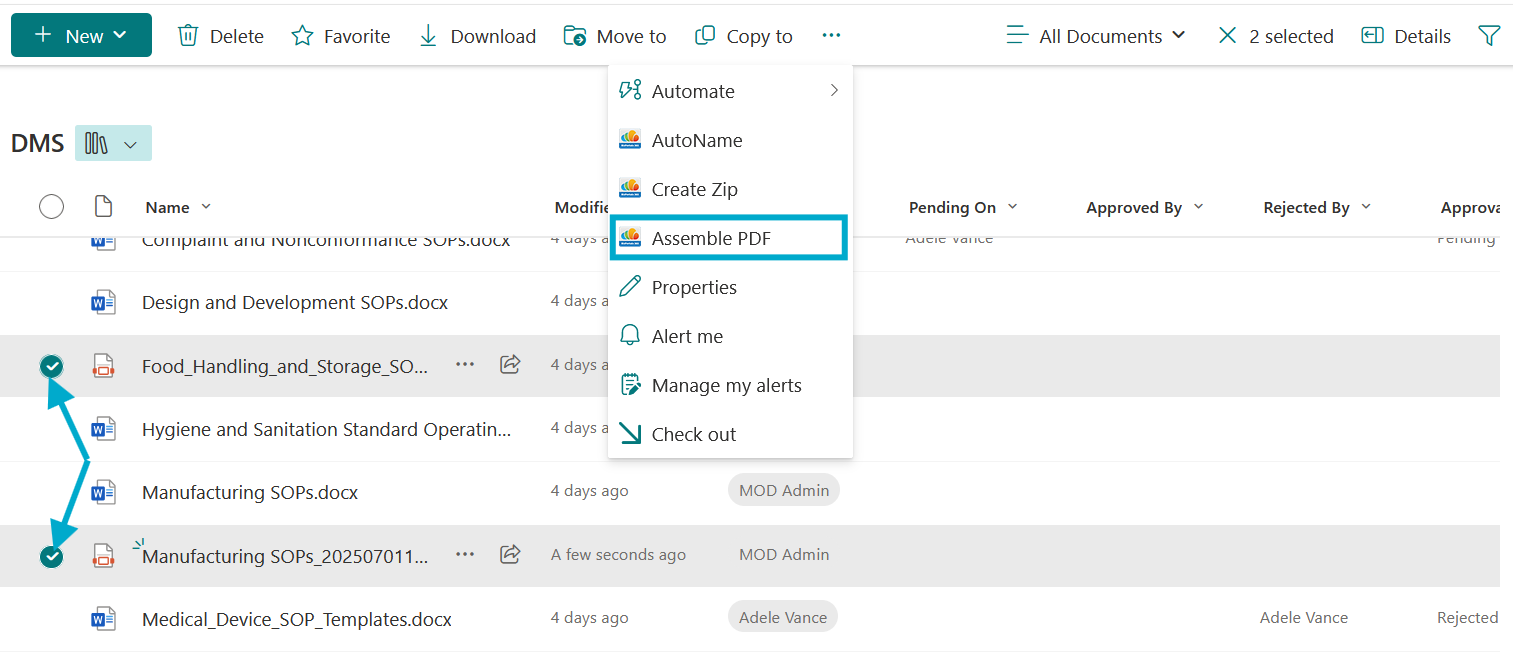
- Click on Assemble PDF to open the wizard.

- Enter a custom name, arrange the file order, and choose to save the merged file in the current library.
- Select a target or destination site if you wish to store the merged file in a different location.

2.2.6 Convert to PDF
The Convert to PDF feature in our DMS extension for SharePoint allows users to effortlessly transform documents into PDF format with a simple and intuitive interface. Users can specify a custom PDF file name and choose whether to save the file to the current library or another destination folder within SharePoint. Additionally, the feature provides an option to overwrite existing files, ensuring seamless file management and version control. This streamlined functionality simplifies document standardization, enhances compatibility across platforms, and supports secure distribution, all while staying fully integrated within the SharePoint environment.
Note: This Convert to PDF option is available for file type “html”, “doc”, “docx”, “odp”, “ods”, “odt”, “pps”, “ppsx”, “ppt”, “pptx”, “rtf”, “xls”, “xlsx”, “jpg”, “jpeg”, “png”, “webp”
- To use this feature, select a supported file type and click on the Convert to PDF option. See the screenshot below for reference.

- Click on Convert to PDF to open the wizard.
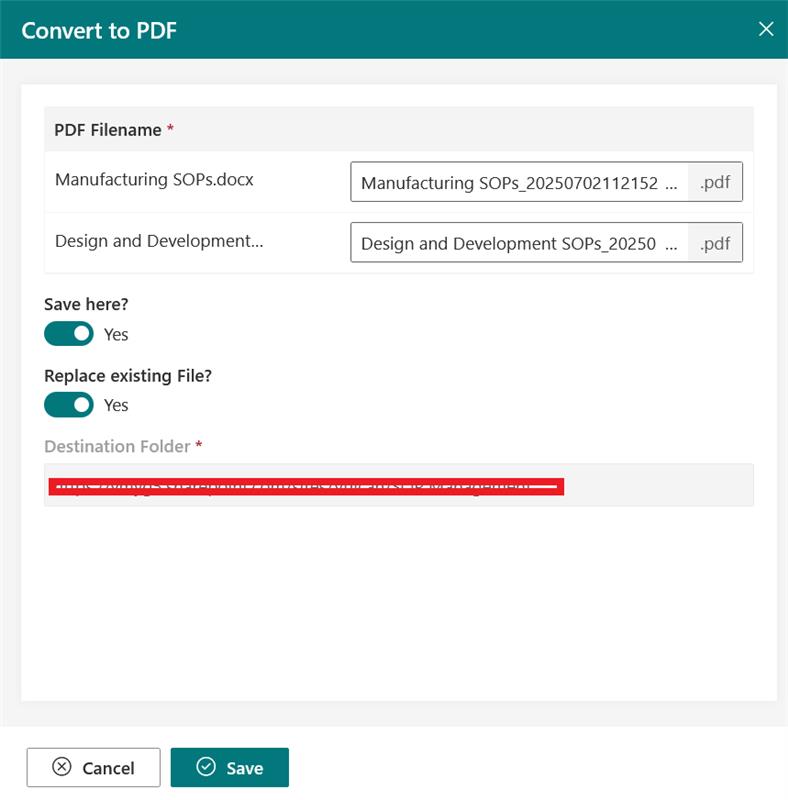
- Enter a custom name and choose to save the converted file in the current library.
- Select a target or destination site if you wish to store the converted file in a different location.

2.2.7 Create Zip
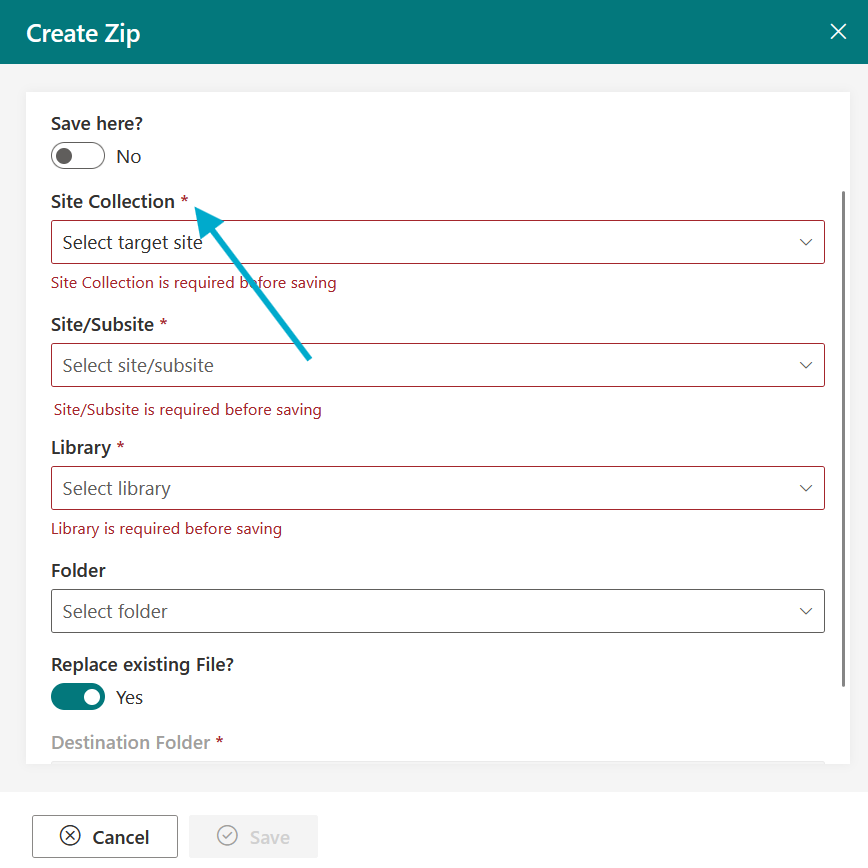
The Create Zip feature in the BizPortals DMS extension for SharePoint enables users to quickly compress multiple documents into a single ZIP file directly within the SharePoint environment. With a user-friendly interface, it allows users to specify a custom ZIP file name, choose whether to save the file to the current library or another destination folder within SharePoint, and optionally overwrite existing files if needed. This functionality streamlines document packaging and sharing, making it easier to manage and distribute large sets of files. Fully integrated with SharePoint, the Create Zip feature eliminates the need for external tools and enhances productivity by keeping all actions within the familiar document library interface.
- To use this feature, select multiple files and click on the Create Zip option. Refer to the screenshot below for guidance.

- Click on Create Zip to open the wizard.

- Enter a custom name and choose to save the Zipped file in the current library.
- Select a target or destination site if you wish to store the Zipped file in a different location.
2.2.8 AutoName Files
The AutoName feature in our DMS library extension for SharePoint supports three versatile options to cater to different document naming needs: Manual Auto Name, Code, and Power Automate. The Manual Auto Name option allows users to manually generate names based on predefined configurations in auto naming settings of document library. The Code based option enables automatic naming through custom-developed logic, ideal for implementing strict naming conventions based on metadata, date, department codes, or other criteria. The Power Automate option leverages Microsoft Power Automate to create dynamic and fully automated naming workflows. Together, these options ensure a scalable and efficient approach to document naming, reducing errors.
- To utilize the Auto naming feature, enable it as shown in the screenshot below.
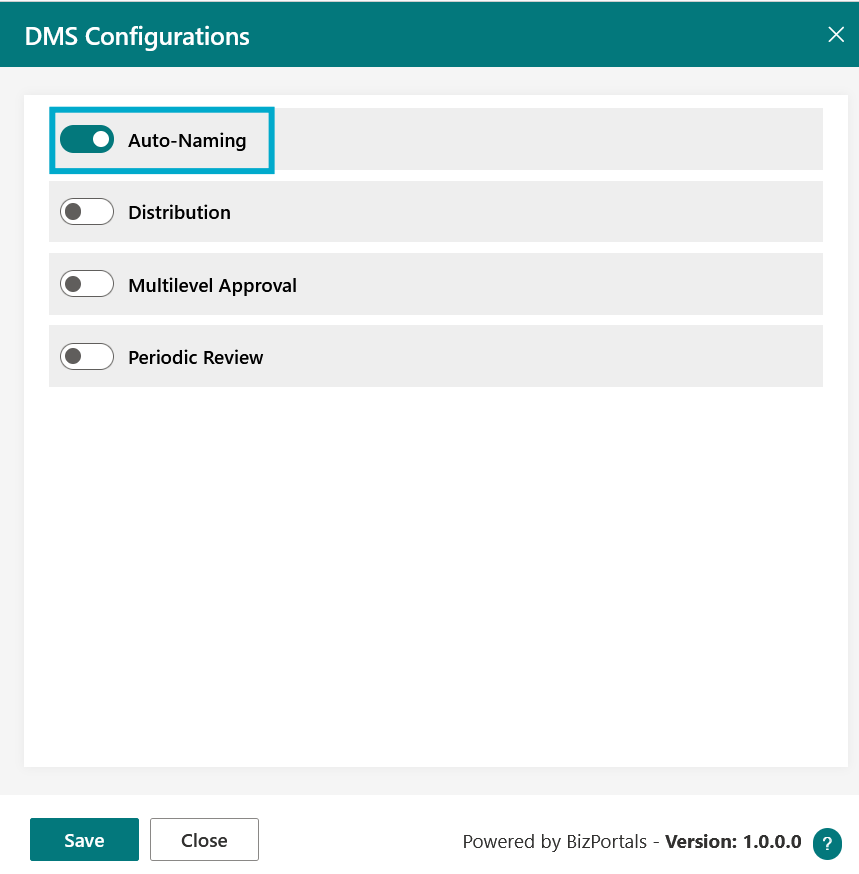
- After saving these settings, you’ll see additional options for library Auto Naming Rules.

- To configure library-level settings, click on “Auto Naming Rules.
- Turn on the “Activate auto-naming ” option and then provide the requested details.

- Configure auto-naming by selecting the method, prefix/postfix, character separator, prefix/postfix text, and column sequencing. You can also add an item ID. Preview your selections, then save.
2.2.8.1 Auto naming – Trigger method
BizPortals 365 Library extension for SharePoint offers three types of auto naming trigger methods to streamline document naming.
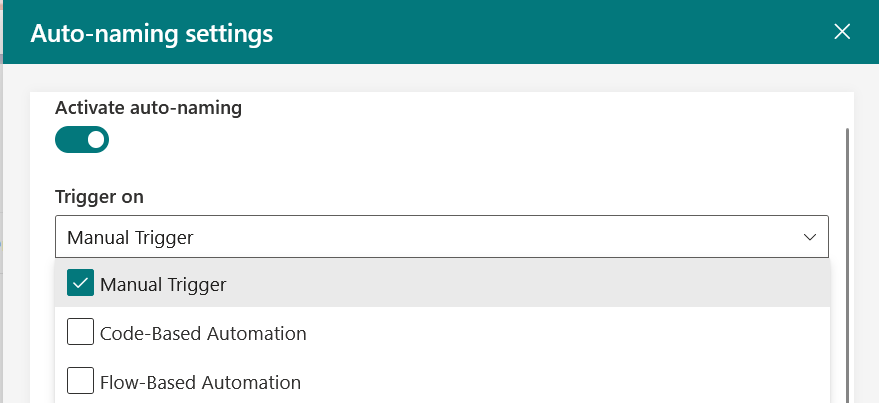
1. Manual Trigger
Manual Trigger allows users to initiate the naming process manually, providing full control over when and how file names are applied ideally for scenarios requiring user discretion.
2. Code-Based Automation
Code-Based Automation utilizes predefined logic or scripts to generate names dynamically based on metadata or business rules, offering flexibility for complex or customized naming patterns.
3. Flow-Based Automation
Flow-Based Automation, on the other hand, integrates with Microsoft Power Automate to automatically apply naming conventions as part of broader workflows, enabling seamless and hands-free naming during document lifecycle events.
2.2.9 Distribute files to different locations
The Distribute feature in the BizPortals Document Library extension allows users to effortlessly transfer documents to a specified destination library—only when predefined conditions are met. Users can choose the target site collection, site or subsite, document library, and optionally a folder within it.
Additional settings include the option to remove the file from the source library after distribution, distribute a PDF copy instead of the original file, and overwrite existing files in the destination. This feature enhances document publishing across SharePoint environments while maintaining flexibility and control.
- To use this feature, simply select the document for which predefined conditions are met and locate the feature Distribute.

- Click on the Distribute to launch its configuration wizard.
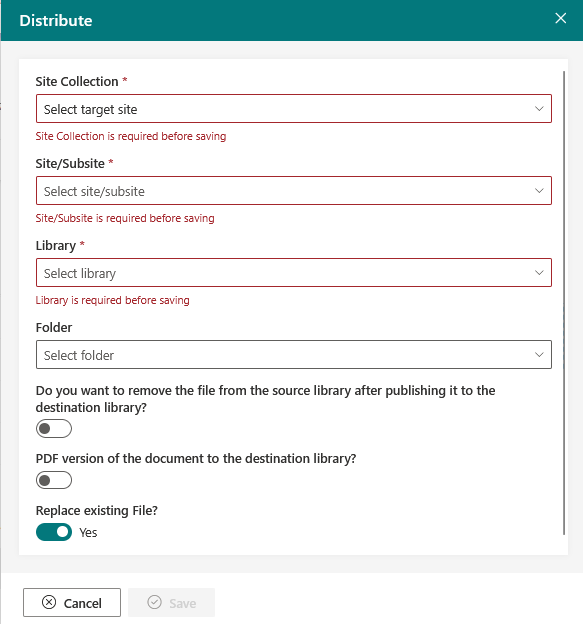
- Select the necessary fields and configure the destination locations, along with additional settings such as removing the file from the source library, generating a PDF version in the destination library, overwriting existing files, and then save your changes.
2.2.10 Extended PDF
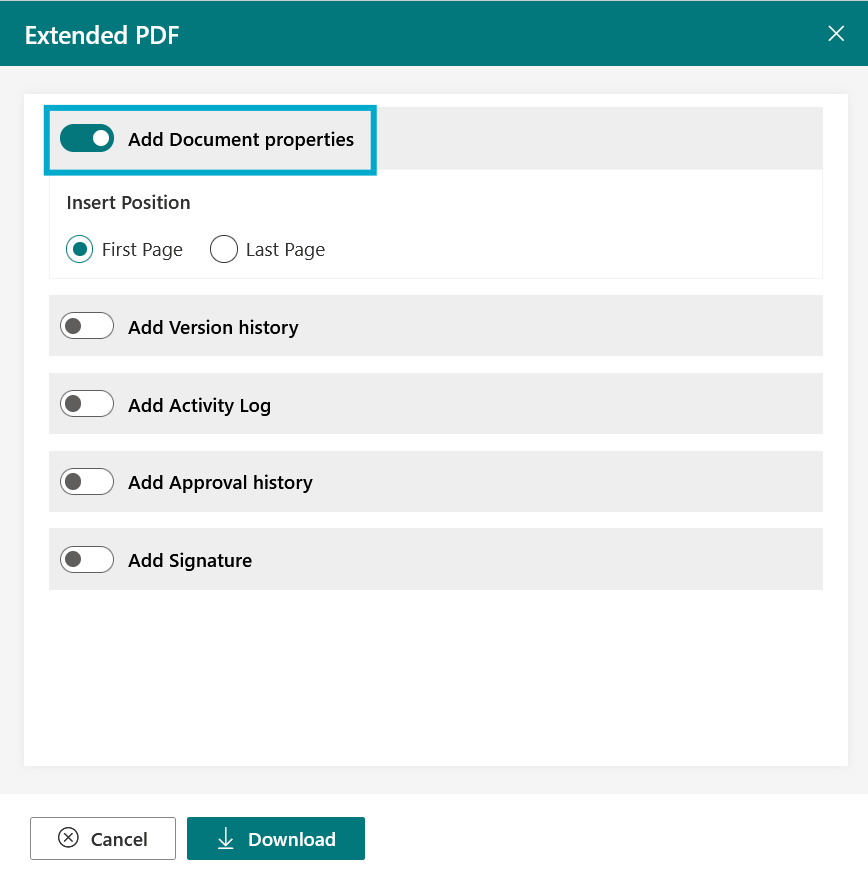
The Extended PDF feature in the BizPortals Document Library extension allows users to convert various file types (excluding existing PDFs) into a PDF format while optionally enriching the output with additional details. Users can choose to include Document Properties, Version History, Activity Log, Approval History, and Signature in the converted PDF. This feature is particularly useful for creating comprehensive, audit-ready documents that consolidate key metadata and approval information in a single file.
- To use this feature, simply select any file (except pdf) and locate the feature Extended PDF.

- Click on the Extended PDF to launch its wizard

- You’ll be able to perform all actions, choose your settings, and download.
Add Document Properties
- Turn on this option to add document’s metadata in the PDF
- Insert Position: Choose whether this section appears on the First Page or Last Page of the PDF.
Add Version History
- Turn on this option to insert the document’s history into the PDF.
- Insert Position: Choose whether this section appears on the First Page or Last Page of the PDF.
- Add Versions: Option to include only Major versions or both Major & Minor versions.

Add Activity Log
- Embeds a log of document-related activities (such as edits, views, or downloads) into the PDF.
- Insert Position: Choose First Page or Last Page for placement.
Add Approval History
- Adds a detailed record of the approval process into the PDF.
- Insert Position: Users can specify whether this appears at the First Page or Last Page of the document.

Add Signature
- Allow users to digitally sign the PDF.
- Two options are available:
- Draw: Manually draw a signature using input controls.
- eSign: Use the authenticated user identity to apply a digital signature automatically.